
404, 302, 500, 403… if this reads as a nonsensical string of numbers, you need to stick around for the full blog. Because these figures haven’t been taken from my kids’ maths homework; they’re all very real, very important website page errors that every business owner should have at least some background knowledge on.
This guide is for the folks who discover digital dead-ends on their website. It’s about how, instead of leaving them for prospective customers or clients to stumble into, you should patch them up before you lose valuable traffic, online visibility, leads, sales and – the big one – trust.
So, without further ado, here is the lowdown on page errors and how to never let them stress you again.
Skip to:
- What is a Page Error?
- The Most Common Page Errors and How You Can Fix Them
- Need an Expert Pair of Hands?
- Conclusion
- FAQs
So, What Exactly Constitutes a “Page Error”?
Let’s start with the basics because many business folks have a different idea of what “page” and “error” even mean.
In website nerd terminology, a web page is a document written in hypertext, an individual page of a website – like the one you’re on right now!
They rely on a transfer protocol, HTTP, to get you on the page you click. Basically, it enables your browser to communicate with the website’s server: the former sends out a request and waits; the latter returns a response along with a response code. A website error is when something goes wrong with that request.
This is when you encounter one of those familiar numbers – 404, 500, 503, 301, 429… – and a website error page pops up (confusingly named, I know).
Why They Happen
There are plenty of specific reasons why a given web page might experience an error. But, fundamentally, it comes down to a trio of underlying problems:
- A client error (4xx codes), when a server can’t or won’t fulfill the request as sent, usually indicating an issue on the user’s end, perhaps with their device or browser.
- A server error (5xx codes), meaning that the problem lies with the website itself. Things like slow loading speeds, software bugs, traffic levels it can’t cope with, or a broader network issue.
- A problem with redirection (3xx codes), as in the URL path of a page has been modified but something went wrong along the way, making action necessary for it to work.
Although some site issues are graver than others, especially on important pages like your checkout, services, homepage or PPC landing pages, my advice is to tackle the 4xx and 5xx errors first.
Ideally, you want to prioritise anything that hinders or outright breaks the user experience where commercial intent is high. But also, don’t overlook the impact they may have on security or discoverability.
Yep, to home in on that last one, critical errors can actually prevent your pages from being indexed by search engines and, thus, being found in the SERPs and even by AI assistants. Not good.
Site Errors’ Impact on Your Business
Speaking of the damaging potential of these site issues, one of the first things you should know about is their impact on your business, its activities and coffers, ultimately.
Every time a page is broken, regardless of the reason, that’s an off-ramp for customers. A blog they never read; a landing page they never arrived at; an order they never completed; a web form never filled out.
Alone, they suck. Together? These page errors are detrimental to your bottom line, brand authority and SEO, flushing your content marketing and lead gen PPC down the drain. Particularly, as Google doesn’t index ordinary 4xx responses and 5xx responses lead to its crawlers temporarily slowing down.
You’re losing out on precious traffic signals, not getting eyeballs on your pages and allowing the customer journey to be abruptly interrupted, which isn’t exactly conducive to sales or brand loyalty, for that matter.
What You Can Do About Them
A good deal, I’ll have you know. And it all starts with a thorough website audit (you can use our checklist, if you’d like).
Put simply, you’ll need to do a proper crawl of your site using Google Search Console, the results of which you might want to cross-reference with another tool. Screaming Frog or Semrush are my current favourites.
Plug in your domain, run the diagnosis and see which URLs return the wrong HTTP status. It’ll also reveal problems like broken internal journeys, redirect fumbles, plus internal links pointing to pages long deleted yet still visible to search engines.
The rest of the process is systematically running through my fixes (see below) and conducting a follow-up audit to witness the improvements/catch anything you missed the first time around.
The 8 Most Common Page Errors and How You Can Fix Them
Before we get into the nitty gritty, a heads up: the error codes we’re about to dig into are defined by the Internet Engineering Task Force (IETF).
400 – Bad Request
This means the web server couldn’t process the request being sent to it. That could be down to malformed syntax, an invalid request or another issue with the information being sent between the browser and server.
If you encounter one as a visitor, refreshing the page, double-checking the URL or clearing your browser cache and cookies may help. If you’re repeatedly finding 400 errors during a site audit, however, there may be something more technical going on behind the scenes.
Quick Fix:
First, check that the URL itself is correct. Then, if you’re consistently getting the same response, get in touch with your website people.
403 – Forbidden
As you might guess from the name, a 403 (Forbidden) response means the server understands the request but refuses to provide access to the resource.
Sometimes, that’s entirely intentional. Think password-protected directories, admin areas or content users don’t have permission to access. But if customers are getting a 403 when trying to access your services, products or other public pages, something’s gone awry.
Quick Fix:
First, establish whether the page should be publicly accessible. If yes, ask your web team to check file permissions, security settings, firewall rules and server configuration to find out what’s blocking access.
404 – Not Found
Ah, the famous one. A 404 means the server can’t find the page or resource at the URL requested.
They often crop up after a page is deleted, its URL is changed without the old address being redirected, or somebody simply clicks on an incorrect link. Sometimes this relates to permissions or authentication restrictions, so the problem isn’t necessarily with the visitor’s device.
And they’re unavoidable. Case in point: Pew Research Center analysed just under one million webpages and found that 25% of pages sampled between 2013 and 2023 were no longer accessible by October 2023. Even among pages sampled in 2021, around one in five were inaccessible just two years later.
Quick Fix:
If the page has moved, add a 301 redirect from the old URL to a relevant replacement and update any internal links still pointing to the old address.
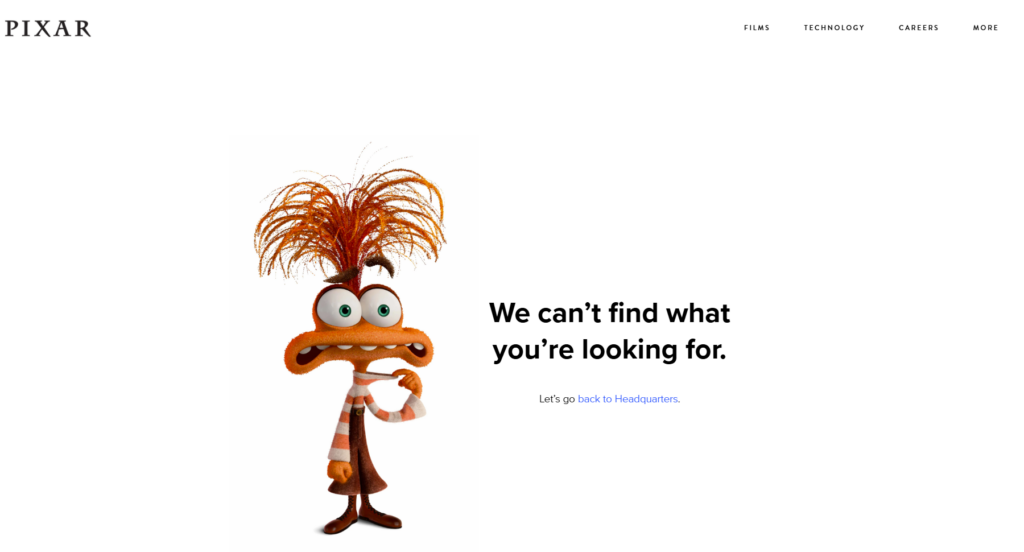
For pages you’ve deleted, and there’s no genuine replacement, they can be fine to leave. Just be sure the 404 page that accompanies the response takes the user where they need to be. In fact, a 404 page is the perfect opportunity to show off your UX design prowess like these creative examples.
408 – Request Timeout
These happen when the server is waiting for the request from a client, but it takes so long that it falls outside the allotted timeframe. Often the culprit is a temporary connection problem on the visitor’s end, but persistent, site-wide occurrences could point towards a deeper issue that needs proper investigation.
Quick Fix:
Check it’s not a problem on your side by refreshing your internet connection and getting other users to take a look. No luck? Then, your developer or hosting provider should do some digging into server timeout settings and any other performance or network issues.
500 – Internal Server Error
This is essentially your server saying: ‘something has gone wrong, but I can’t give you a more specific answer than that’.
A 500 is a generic server-side error and can have all sorts of causes, including broken code, configuration problems, failed updates or plugin issues. Because the server can’t successfully fulfil the request, repeated 500 errors deserve your attention sharpish.
Quick Fix:
Check application and server error logs first. If the error persists, roll back recent changes where appropriate and ask your developer or hosting provider to investigate the underlying exception.
503 – Service Unavailable
A 503 error message means the server is temporarily unable to handle your request. As the name suggests, it’s a bit different from 500s, as in it handles temporary situations, such as planned maintenance or a server struggling under excessive demand.
A brief 503 during properly configured maintenance isn’t necessarily cause for panic. A website regularly becoming unavailable under normal traffic, however, is a different kettle of fish. The latter definitely warrants further investigation.
Quick Fix:
If you’re running planned maintenance, your web team should make sure the 503 is configured correctly and, where appropriate, includes information telling clients when to try again. Unexpected or recurring 503s should be raised with your developer or hosting provider to investigate capacity, resources and server performance.
301 – Moved Permanently
Good news: this one’s not actually an error.
A 301 tells browsers and search engines that a page has permanently moved to another URL. They’re incredibly useful when you delete, rename or migrate pages because anyone visiting the old address can automatically be sent to its new home.
The bad news? Problems arise when they’re implemented badly. Redirect chains (Page A → Page B → Page C), loops or redirects to completely irrelevant pages can all create unnecessary headaches for users and search engines.
Quick Fix:
Make sure the old URL redirects directly to the most relevant live replacement. Update your internal links to point straight to the final URL too, rather than unnecessarily sending visitors on a mammoth journey through multiple redirects.
302 – Moved Temporarily
A 302 tells browsers and search engines that a resource has temporarily moved somewhere else.
The important word there is temporarily. If you’re running a short-term campaign, A/B test or temporarily sending visitors elsewhere while work takes place, a temporary redirect may make perfect sense. If the move is permanent, however, a 301 will usually be the appropriate choice.
Quick Fix:
Ask yourself whether the original URL is coming back. If yes, the temporary redirect is probably fine. If the change is permanent, though, speak to your web team about replacing it or pop in a permanent redirect yourself.
Still Experiencing Errors? Perhaps You Need an Expert Pair of Hands
You blitzed through the list and enacted my advice, but there’s still something wrong? That may be a sign of something deeper going on with your site. A pesky issue lurking in the code or a feature bug leading to cascading issues.
And if you receive an error message that wasn’t on my list above, it’s probably custom to your web server, as that’s a non-standard response.
At this point, you could ask Dr Google to diagnose, have a chitchat with Gemini, or trawl through reams of Reddit threads. But me? I’d take it straight to the experts. Because if you don’t have a techy background, your time is probably better spent on more productive tasks that align with your expertise, especially if you have teams to manage, clients to onboard, meetings to facilitate, campaigns to sign off.
Conclusion: Website Errors are Inevitable, but Stress Isn’t
Pretty much every website will run into page errors from time to time. Nothing to be embarrassed about; it happens to the best of us!
What is embarrassing, though, is leaving them unresolved and letting piping hot leads slip right through your fingers. Urgh… it pains me to see.
Which is why I recommend that all businesses (yes, even the non-tech-savvy ones) brush up on the most common error messages and what they mean. So, even if you’re not the one doing the digital clean-up, you can quickly communicate the basics to your website people. And then they’ll sort you out.
…Speaking of website people… the lovely humans at Vital are some of the most experienced developers and designers around. So, if you want a faster, smoother, irresistibly clickable website – one that wins over your dream clients – you know where to find us.
Frequently Asked Questions
Some of the most common website issues include 400 Bad Request, 403 Forbidden, 404 Not Found, 408 Request Timeout, 500 Internal Server Error and 503 Service Unavailable responses. You may also encounter 301 and 302 redirects, which aren’t technically errors but can cause problems when configured incorrectly.
Yes. Website errors can prevent search engines from accessing or indexing pages, break internal journeys and send visitors to dead ends. Persistent errors on important pages can therefore negatively affect your website’s visibility, traffic and user experience.
Start by crawling and auditing your website using tools such as Google Search Console, Screaming Frog or Semrush. Look for URLs returning unexpected HTTP status codes, broken internal links, redirect chains and links pointing to pages that have been removed.
If the missing page has moved, add a 301 redirect from the old URL to the most relevant live replacement and update any internal links. If the page was intentionally deleted and there’s no suitable replacement, a 404 can remain, but the error page should help visitors navigate somewhere useful.
A soft 404 happens when a webpage appears to be missing or unavailable but returns a successful HTTP 200 status code instead of a proper 404 (Not Found) or 410 (Gone) response. For example, a deleted product page might display a “Page not found” message while still returning a 200 status code. This can confuse search engines because the server is signalling that the page exists even though its content says otherwise.
To fix a soft 404, return the correct 404 or 410 status code if the page no longer exists and has no suitable replacement. If the content has permanently moved to a relevant new URL, use a 301 redirect instead.
A 301 redirect indicates that a page has permanently moved to another URL, while a 302 indicates that the move is temporary. If the original URL isn’t coming back, a 301 will usually be the appropriate option; a 302 is better suited to genuinely temporary changes such as short-term campaigns or testing.
Bring in a developer or hosting provider when errors are recurring, site-wide or caused by server configuration, permissions, code, plugins, performance or networking issues. This is particularly important when errors affect commercially important pages such as your homepage, services, checkout or landing pages.


